What Is Remote Desktop? How IT Teams Actually Use It to Operate and Support RDS at Scale
What is Remote Desktop in real RDS environments? Learn how IT teams use RDP daily to operate, secure and monitor Remote Desktop Services at scale.

Would you like to see the site in a different language?
RDS TOOLS BLOG
Remote Desktop is essential for modern work, yet exposing RDP online can create major security risks. In this guide, we show how to set up a VPN for Remote Desktop on Windows, macOS and Linux using built-in tools and open-source clients. Step-by-step instructions help you connect safely from any operating system and protect your remote sessions with end-to-end encryption. as well as place RDS Tools software in the picture to protect and enhance your infrastructure .
)
Remote work has made secure remote access a permanent requirement. While Windows Remote Desktop is a powerful tool for connecting to servers and workstations, using it without protection exposes your network to automated attacks, credential theft and unauthorized access.
A VPN for Remote Desktop solves this problem by creating an encrypted tunnel between your device and the remote network. This article explains why a VPN is essential for Remote Desktop security and shows step-by-step configuration on Windows, macOS and Linux. Then, beyond configuring a VPN for Remote Desktop, we will attend to securing the broader RDS environment. Attackers increasingly target exposed RDP endpoints, weak passwords and unmonitored servers. Therefore, after describing the various VPN set-ups, we will round up on why pairing a VPN with a hardened Remote Desktop infrastructure toolset such as our RDS Tools creates a complete, robust and resilient strategy.
Running RDP directly over the internet (especially on the default port 3389) has become a common entry point for botnets and ransomware campaigns. The solution is not to hide the port, but to restrict RDP access to authenticated. Virtual Private Network (VPN) users.
A VPN adds three layers of protection:
Every keystroke, session, or file transfer is encrypted end-to-end. Even if someone intercepts the traffic, they lack the key to decode it.
RDP remains inside the private network. Attackers scanning the internet never see it.
VPN authentication adds another layer on top of Windows credentials, often including MFA.
Thus, instead of exposing the Remote Desktop Protocol (RDP) port to the internet, users authenticate to the VPN, obtain a local network IP address and then access the remote machine as if they were physically on-site.
Broken down, the concept is simple:
This approach supports security policies for SMBs and larger organisations alike, but a VPN alone covers only certain bases. For real infrastructure-wide secure connections RDS -Tools brings essential building blocks.
Depending on uses, a VPN alone isn’t enough to secure remote desktops even though it is a strong layer of protection. Indeed, it does not secure the Remote Desktop infrastructure itself. Why is it that many organizations rely on a VPN, assuming their environment is fully protected, yet cyberattacks targeting RDP continue to rise? Because a VPN only protects the connection, not what happens before or after users log in.
Here are the main limitations of relying solely on a VPN:
Even inside a VPN network, malicious or infected devices can attempt to brute-force RDP credentials. Without additional controls, nothing prevents repeated login attempts or unauthorized access from compromised users. This is the first gap bridged by RDS Advanced Security.
A VPN grants network access
, not
role-based access
.
Who can connect? From which IP? When? From which device? To which server? To use which tools?
A VPN does not answer these questions. Do you use Azure? Microsoft RDS? In any case, RDS Advanced Security has the IPs covered and learns your habits in order to spot unusual behaviour and thwart potential attacks all the faster.
VPNs are not designed for:
Hence why organizations still suffer performance issues even when their VPN is working perfectly. We have seen to it that RDS Tools sees to these matters through RDS Server Monitoring and RDS Advanced Security.
When users face issues, especially at home, IT agents still need to:
A VPN does not supply these tools, while RDS Remote Support does.
Once a user is connected, data can still be copied, transferred or misused.
Features such as:
are not part of traditional VPN solutions.
Security today is not only about encryption:
all come into play. VPNs were never designed to cover these areas, whereas RDS-Tools provides you with the basics you need, and more.
In short, a VPN protects the road to your RDS server and RDS-Tools protects the server , the users and the data .
Together, they form a complete security ecosystem.
First, a few prerequisites and checks. Before configuring your system, confirm:
Once these are confirmed, you can configure your operating system.
Below are the steps for connecting to a VPN and using Remote Desktop securely.
Windows includes a native VPN client that supports PPTP, L2TP/IPSec, SSTP, and IKEv2. For modern deployments, SSTP or IKEv2 are recommended.
Save the configuration.
If the VPN is working correctly, you should connect immediately without exposing the RDP port.
macOS doesn’t include a Remote Desktop server, but it connects perfectly to Windows-based RDP using the Microsoft Remote Desktop client.
If you have none, here are some OpenVPN-based deployments you can use:
Install the client and import the .ovpn or .conf configuration file provided by your network admin.
Verify that you receive a private network IP .
The RDP session now runs inside the VPN tunnel.
Linux users have powerful open-source tools for both VPN and RDP connections.
Most distributions support:
Use your package manager:
sudo apt install network-manager-openvpn
Or for WireGuard:
sudo apt install wireguard
Import configuration files or create a new VPN profile in NetworkManager.
Confirm you receive a private IP.
Popular options include:
Install Remmina:
sudo apt install remmina
Your RDP session is now secured through the VPN network.
While a VPN secures the tunnel between a user and your network, the Remote Desktop infrastructure itself must also be protected. RDS Tools offers a software tool-kit designed to harden your servers, monitor system activity and streamline secure remote assistance.
RDS Advanced Security provides multiple layers of real-time protection for RDS servers, ensuring that only legitimate users gain access. It helps eliminate the most common attack vectors targeting RDP:
When combined with a VPN, RDS Advanced Security closes the remaining gaps and creates a fully controlled, policy-driven access model.
A secure Remote Desktop infrastructure also requires visibility into system health and user activity.
RDS Server Monitoring provides:
When VPN connections increase due to remote work, Server Monitoring ensures your infrastructure stays stable, performant and predictable.
Beyond server-side protection, IT teams need a secure way to assist users wherever they are.
RDS Remote Support provides:
This tool integrates seamlessly with a VPN-based approach to maintain strictly controlled, audited support interactions.
Remote support today goes beyond Windows machines. Hybrid teams often mix Windows desktops, Macs and mobile devices RDS Tools Remote Support enables technicians to securely connect to and control devices across multiple platforms, all through an encrypted, permission-based architecture.
RDS Remote Support provides full remote control of Windows desktops and servers:
This is ideal for supporting employees connecting via VPN and RDS.
Mac devices are increasingly common in corporate environments. RDS Remote Support allows IT teams to:
VPN users can receive support even from home or travel locations.
For mobile or front-line workers, Android support is essential. RDS Remote Support includes:
As long as the device can establish an internet or VPN connection, IT can provide prompt and secure support.
Even with correct configuration, a few common problems can appear. Here are three prime examples:
If you can’t resolve internal hostnames, try:
If the VPN doesn’t route internal traffic, the server may need:
Both client and server firewalls must allow RDP over the VPN, not over the internet.
In order to protect your Remote Desktop environment:
Following these practices significantly reduces attack risks and improves long-term reliability.
If you already use a VPN for Remote Desktop, RDS-Tools boosts your security, stability and support capabilities. The suite is purpose-built for RDS environments, solving the exact challenges that VPNs don’t address.
Here are the core advantages of using RDS Tools:
RDS Advanced Security adds powerful protections:
Your RDP server becomes invisible to attackers, even to those already inside the network.
RDS Server Monitoring gives you the visibility that VPNs lack:
This ensures your RDS infrastructure can reliably support remote users.
RDS Remote Support extends remote help-desk capabilities to:
This means your IT team can support every employee device, even outside the corporate network, and without needing complex configuration.
VPN solutions rarely offer:
RDS-Tools software closes these gaps and supports compliance requirements (GDPR, ISO, SOC2, etc.).
Unlike enterprise suites or complex add-ons for RDP gateways, RDS-Tools:
It delivers advanced settings to any size of business without “enterprise” complexity.
Whether you use:
RDS-Tools is fully compatible and adds value regardless of the underlying VPN technology.
By combining VPN encryption with RDS-Tools cyber-security, monitoring and remote support capabilities, organizations gain a remote desktop infrastructure that is:
This is the foundation of a modern, resilient remote workplace.
A VPN for Remote Desktop is the safest way to connect to remote machines, whether you are managing servers, accessing office resources from home or supporting a hybrid workforce. With a VPN in place, your RDP sessions run inside a protected network environment and are shielded from the attacks that target exposed RDP endpoints.
This guide has been over setting up VPN for Windows, macOS and Linux and looked beyond to a flexible, cross-platform solution suitable for both small businesses and large organisations.
Combine a VPN with a hardened Remote Desktop environment to deliver the most secure and reliable remote strategy available today. While the VPN protects traffic, RDS Tools safeguard the infrastructure itself. The tools control who can connect, monitor system activity and enable secure remote support across all platforms.
With RDS Advanced Security , RDS Server Monitoring and RDS Remote Support businesses can build a fully compliant, scalable and resilient remote access ecosystem. Whether your team works on-site, remotely or in hybrid mode, this layered security approach ensures that every Remote Desktop connection remains fast, secure and easy to manage.
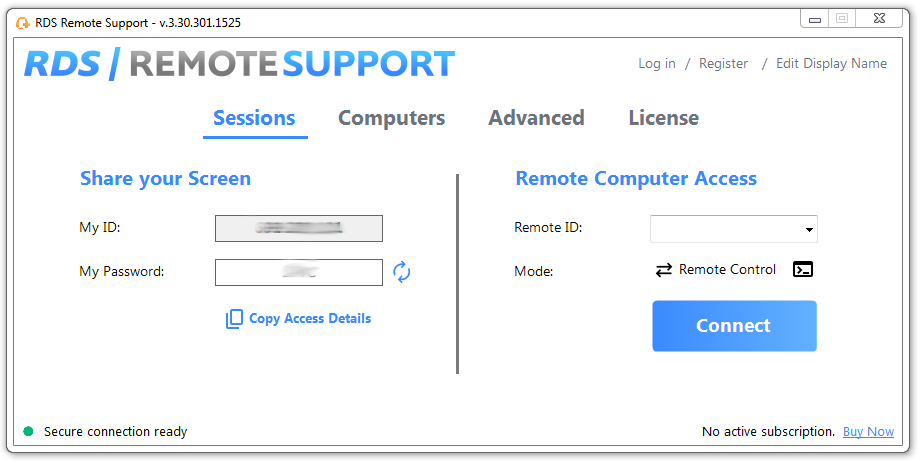
RDS Remote Support Free Trial
Cost-effective Attended and Unattended Remote Assistance from/to macOS and Windows PCs.

Your RDS Tools Team
Simple, Robust and Affordable Remote Access Solutions for IT professionals.
The Ultimate Toolbox to better Serve your Microsoft RDS Clients.
 Get in touch
Related Posts
)
What is Remote Desktop in real RDS environments? Learn how IT teams use RDP daily to operate, secure and monitor Remote Desktop Services at scale.
)
Learn how to manage multi-monitor remote support in Remote Desktop Services (RDS). Avoid pitfalls, optimise performance, and support complex user setups effectively.
)
VDI vs RDP: a practical decision-making framework to examine costs, risks and requirements. Discover how to supercharge RDS with or without VDI.
)
Learn how IT agents can deliver secure remote support with RDS-Tools Remote Support and get a copy-paste script to explain desktop sharing to end-users.
